
SCAN NVIDIA
What it is. HYDRA's automatic tuning for NVIDIA graphics cards. It finds the highest stable clock for each voltage point of the core V/F curve, tunes the XBAR, checks the video memory offset, and saves the result to RTX-TUNER. At the end it gives a verdict on your chip.
Why use it. Tuning a curve by hand means hours of trial, crashes and guesswork. The diagnostic does it on its own under a real 3D load, keeps safety margins, recovers from driver resets, and resumes after a crash or restart. You get a ready profile: an overclock, an undervolt or both, depending on the preset.
Starting a diagnostic
- Close games and other tuning or monitoring apps. CHECK CONFLICTS shows what may interfere.
- Click SCAN in the bottom bar of HYDRA and choose GPU.
- The first time, HYDRA asks to download the APP PACK with the HYDRA Elemental2 benchmark, which serves as the load.
- In NVIDIA DIAGNOSTIC CENTER, choose the card and a preset, check the settings, and click the check mark.
- Leave the PC alone until the end. The LOGGING tab shows the progress; STOP cancels the run.
NVIDIA DIAGNOSTIC CENTER
![NVIDIA DIAGNOSTIC CENTER for #0 — RTX 5090 [Display]: Preset DEF, VRAM Test 0, CORE Test 1, XBAR Test 1, FAN Soak off, and GPU SETTINGS with VRAM Offset 375, CORE Offset 300, XBAR Curve 300, SYS Offset 0, CORE VID Min 850, CORE VID Max 1050, NVVDD Lim 1045 mV, MSVDD Lim 995 mV, Power Lim 100, FAN Speed 0, NVVDD Lim 480 A, MSVDD Lim 180 A, Input Current 60 A.](/img/nvidia-diagnostic-center.png)
- 1Graphics card. The NVIDIA card to tune. The fields below switch to its own limits. [Display] marks the card with a monitor; the benchmark runs on the chosen card either way.
- 2Preset. A quick starting point for all fields, see the table below. After choosing it you can change any field.
- 3VRAM, CORE and XBAR Test. How many times each test is repeated. 0 skips the VRAM or XBAR stage.
- 4FAN Soak. Lets the card warm up to about 78–82 °C to check stability at a realistic temperature. Use only with reliable cooling.
- 5GPU SETTINGS. Start values and fixed limits of the run, see GPU SETTINGS.
- 6Buttons. Screenshot, reset to the preset defaults, start, cancel.
| Preset | Goal |
|---|---|
| UV | An undervolt: the curve up to 900 mV, or the protected minimum of the card when it is higher, with the power limit at 85 %. |
| DEF | The curve up to 1050 mV with the stock power limit (100 %). |
GPU SETTINGS
| Field | What it does |
|---|---|
| CORE VID Max, CORE VID Min | The voltage range of the curve search. HYDRA tests every 25 mV from Max down to Min; points below Min take the offset of Min. Equal values test one point. |
| CORE Offset | The clock offset the search starts from, 0 to 1000 MHz. Lower it if the first run is unstable. |
| VRAM Offset | The memory clock offset the VRAM stage starts from, added to the stock clock. |
| XBAR Curve (MHz) | The offset the XBAR search starts from. RTX 40 and 50 Series and RTX PRO 6000. |
| SYS Offset | A fixed SYS clock offset for the whole run. RTX 50 Series and RTX PRO 6000. |
| Power Lim | The board power limit in percent; 100 is stock. Set the limit you will use every day: the curve is built under it. |
| FAN Speed | 0 keeps automatic fan control; 30–100 fixes the fan speed in percent. |
| NVVDD Lim, MSVDD Lim (mV) | Fixed voltage limits of the rails; 0 keeps the driver default. |
| NVVDD Lim, MSVDD Lim (A), Input Current (A) | Fixed current limits of the rails and the input current limit of the card. They start at the stock values. |
The fixed limits stay the same during the whole run and go to the RTX-TUNER profile with the result. Fields a card does not support are greyed out. More on the limits: NVIDIA XOC UNLOCK.
What the diagnostic does
- Preparation. HYDRA turns off the overlay, pauses the NVIDIA App service, resets the card to stock and reads its reference curve.
- CORE search. From the highest voltage point down, HYDRA raises the clock offset of each point and runs Elemental2. Steps are 45 MHz until the first failure, then 15 MHz. A failure, such as a driver reset or a crashed benchmark, returns the point to the last offset that passed.
- CORE verification. The whole curve runs again with the found offsets. After it passes, every point loses 45 MHz as a safety margin.
- XBAR. If XBAR Test is above 0, HYDRA searches the XBAR curve offset under a VANTA load, then checks it together with the core curve in Elemental2.
- VRAM. If VRAM Test is above 0, HYDRA tests the memory with VANTA: from VRAM Offset it raises the offset in 10 MHz steps until errors appear, keeps the last clean value and takes 10 MHz off as a margin. On RTX 5090 and RTX PRO 6000 this stage is skipped and the VRAM Offset you entered is saved untested.
- Verdict and result. HYDRA prints the final curve and the verdict, and saves everything to the global profile of RTX-TUNER.
The first full load also shows the highest voltage the card really reaches. Points above it are marked SKIP: the curve is flat from there, because the card cannot use them under this power limit.
Following the run
HYDRA switches to the LOGGING tab. The log describes every step; the table at the top shows the card being tuned.
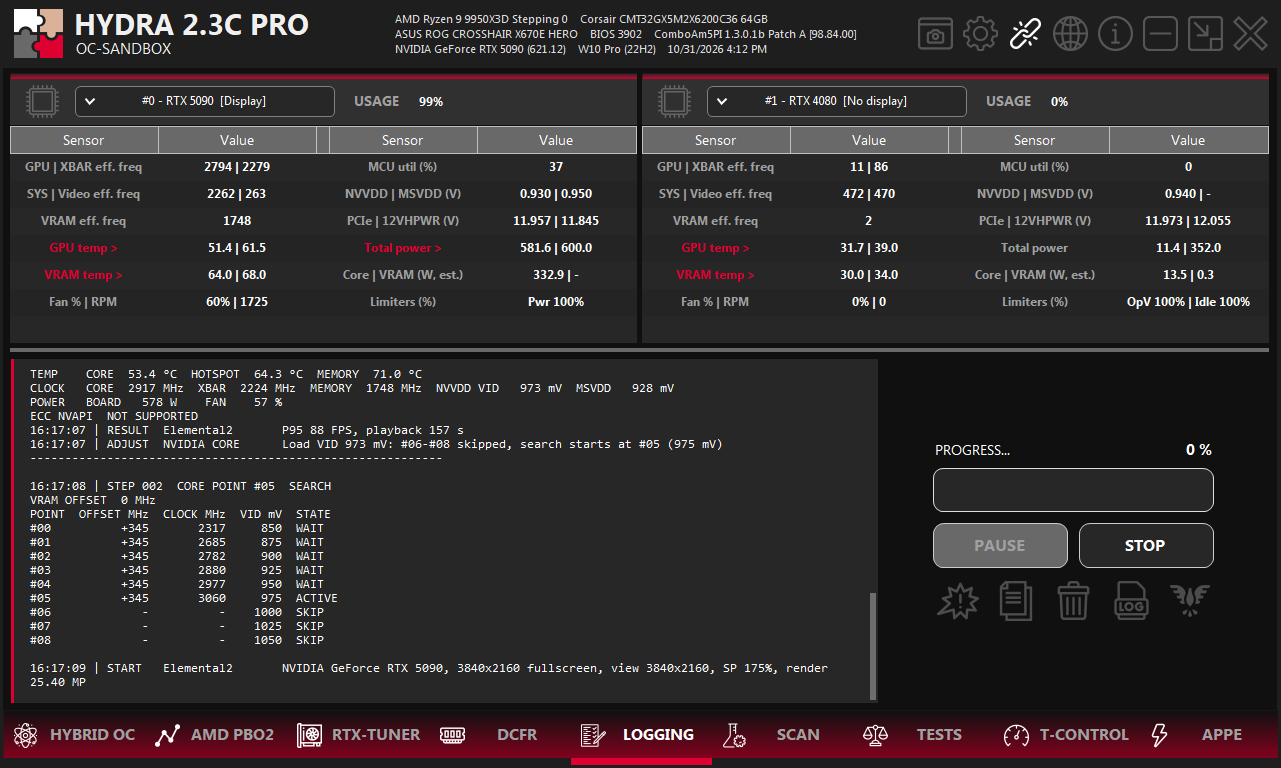
- 1Card under test. Live clocks, voltages, temperatures, power and limits of the card.
- 2Measurements and result. Temperatures, clocks and power during the run, the result of the step, and ADJUST lines when HYDRA changes the plan.
- 3Step and points. The step number, what is tested now, and the table of curve points.
- 4START. The load that starts now, with its resolution and render size.
- 5STOP. Cancels the diagnostic; nothing is saved.
| State | Meaning |
|---|---|
| ACTIVE | The point being tested now. |
| DONE | The point is finished; OFFSET and CLOCK are its result. |
| WAIT | The point is still ahead; its search will start near the result of the point above. |
| SKIP | Above the voltage the card reaches under full load; not tested. |

The verdict
At the end, the log shows the final points table and the analysis of the curve. An example from an RTX 5090:
Curve analysis:
Best performance point : 975 mV / 3015 MHz
vs stock maximum       : +98 MHz at -70 mV (stock 2917 MHz @ 1045 mV)
Best efficiency region : 850-870 mV
Diminishing returns    : above ~866 mV
CORE safety margin     : -45 MHz
VRAM safety margin     : not applied
Curve status           : valid, monotonic
Voltage ceiling        : 1045 mV (NVIDIA limit for this chip's leakage; model 900-1110 mV)
Limit reason           : initial load fit cut at 975 mV, below the chip ceiling
Silicon (NVIDIA factory data, not a measurement):
Speed / leakage        : 55 % / 23 % of model range -> Balanced chip
Factory lottery        : 2754..2952 MHz @1050 mV/60 °C across this model; this chip 2860
Curve plateau : from 975 mV (VID MAX 1050 mV lowered to the voltage of the first full workload)| Line | Meaning |
|---|---|
| Best performance point | The highest clock of the final curve and its voltage. |
| vs stock maximum | Compared with the top of the stock curve at the chip's voltage ceiling: how many MHz more, at how many mV less. In the example: 98 MHz faster at 70 mV lower. |
| Best efficiency region | The voltages where the runs gave the most frames per watt. A good target for an undervolt. |
| Diminishing returns | Above this voltage, each extra millivolt adds little performance for the extra power and heat. |
| CORE safety margin | Taken off every point after the curve passed verification. |
| VRAM safety margin | Taken off the memory offset. Not applied when the VRAM stage did not run. |
| Curve status | valid, monotonic: the clock never drops as the voltage rises. check required: look at the curve in CURVE EDITOR. |
| Voltage ceiling | The highest voltage NVIDIA allows this chip, from its factory data. On some models it depends on the chip's leakage; then the model's range is shown. |
| Limit reason | Why the curve ends where it does. initial load fit: under full load the card does not reach higher points, usually because of the power limit; the line may suggest more POWER or better cooling. It also says whether this is below or at the chip ceiling. |
| Speed / leakage | Where the chip's factory speed rating and leakage sit within its model, with the same verdict as the silicon map of ELECTRIC DREAMS NIGHT BENCHMARK. |
| Factory lottery | The factory clock range of this model at 1050 mV and 60 °C, from the slowest to the fastest chip, and where this chip is. |
| Curve plateau | The voltage from which the curve stays flat, and why: the voltage of the first full load, the highest tested voltage, or VID MAX. |
After the diagnostic
- The curve, the VRAM and XBAR offsets, the limits, the power limit and the fan setting are saved to the global profile of RTX-TUNER. The curve is in CURVE EDITOR.
- A run that is stopped or fails saves nothing. If even the stock clock is unstable, the diagnostic stops: check the card and its cooling first.
- If the PC crashes or restarts, Phoenix resumes the diagnostic after HYDRA starts again. It waits 30 seconds first: press STOP to cancel.
- If the NVIDIA App service was running, HYDRA starts it again after the run. Turn the overlay back on in SETTINGS if you use it.
Good to know
- Choose Power Lim and FAN Speed as you will use them every day: the curve is only as stable as the conditions it was found in.
- More CORE Test repetitions take longer but catch borderline points; use 1 to explore and more before you keep the result.
- A short VRAM test finds a quick offset; a longer one gives heat-dependent memory errors time to appear.
- The diagnostic works with the curve of one card at a time. For another card, run it again and choose that card.
Something wrong or missing on this page? Tell us in Discord.