
LOGGING
What it is. The LOGGING tab of HYDRA: two live sensor tables for the processor, memory and graphics card, the HYDRA log with every message of the app, and sensor logging to a CSV file. A double-click on a sensor opens its history as a chart.
Why use it. This is where you see what the hardware is really doing and what HYDRA did about it. The tables show voltages, clocks, temperatures and limits at a glance; Sensor History shows how a value moved over the last minutes; the log explains each action and error; and a CSV file keeps a whole test or game session for a spreadsheet or for sharing when you ask for help.
The screen at a glance
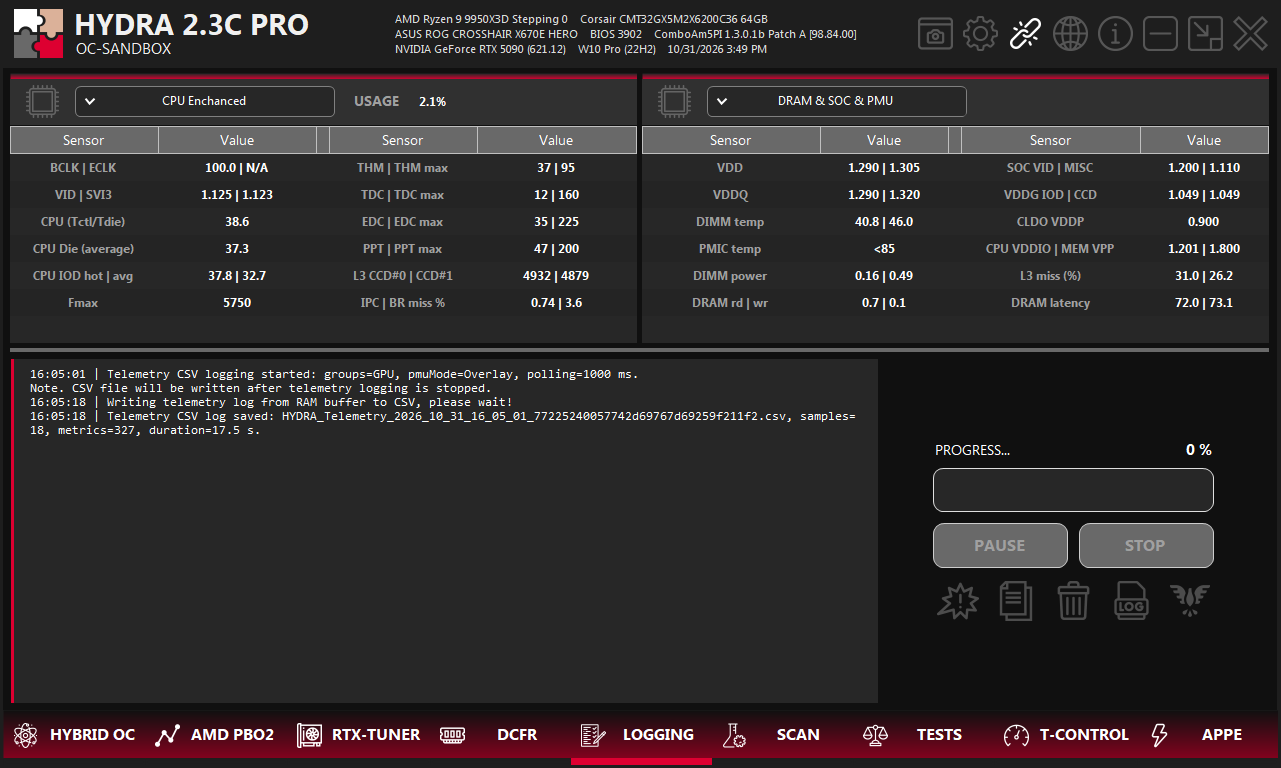
- 1Table selector. What this table shows. Each of the two tables has its own selector. See Sensor tables.
- 2SENSOR CUSTOMIZATION. The chip icon picks the rows of the per-core tables. See SENSOR CUSTOMIZATION.
- 3Sensor table. Live values. Double-click a value to open its Sensor History.
- 4HYDRA log. Messages about what HYDRA does: settings applied, tests, warnings and errors. See HYDRA log.
- 5Progress, PAUSE and STOP. Progress of a running test or diagnostic, and the buttons to pause or stop it.
- 6Check conflicts. Looks for other apps that conflict with HYDRA. See CHECK CONFLICTS.
- 7Copy log. Copies the whole log to the clipboard.
- 8Clear log. Clears the log on the screen; the log file stays.
- 9CSV logging. Starts and stops recording sensors to a CSV file. See CSV logging.
- 10Phoenix. Resumes a diagnostic interrupted by a crash or restart, if it did not resume by itself.
Sensor tables
The two tables at the top work independently: pick a different group in each to see two parts of the system side by side. HYDRA remembers the choice.
| Group | What it shows |
|---|---|
| CCD#0, CCD#1 | One column per core of the CCD, with the rows chosen in SENSOR CUSTOMIZATION. The panel title shows the average core and L3 temperature of the CCD. |
| CPU Enchanced | The processor as a whole: BCLK, VID and SVI3 voltage, temperatures, PPT, TDC and EDC with their limits, L3 clocks, Fmax, IPC and branch misses. |
| DRAM & SOC & PMU | Memory and SoC: VDD and VDDQ of the modules, DIMM and PMIC temperature, DIMM power, SoC, VDDG, VDDP, VDDIO and VPP voltages, memory read and write bandwidth, memory latency and L3 misses. |
| #0 – graphics card | One entry per graphics card: clocks, voltages, temperatures, power, fans and limits. The name also says whether a monitor is connected to the card: [Display], [No display] or [Display unknown]. |
- Two values in one cell, such as
PPT | PPT max, are a reading and its pair: here the current power and its limit. - A sensor name ending with
>opens a window with more detail on click, for example every temperature sensor of the GPU or video memory, or the pins of the 12V connector on supported cards. - USAGE next to the selector is the load of the processor, or of the selected CCD.
- The values refresh at the Monitoring interval from Main Settings in the SETTINGS tab.
SENSOR CUSTOMIZATION
The chip icon next to a table selector opens this window. It sets which rows the CCD#0 and CCD#1 tables show.
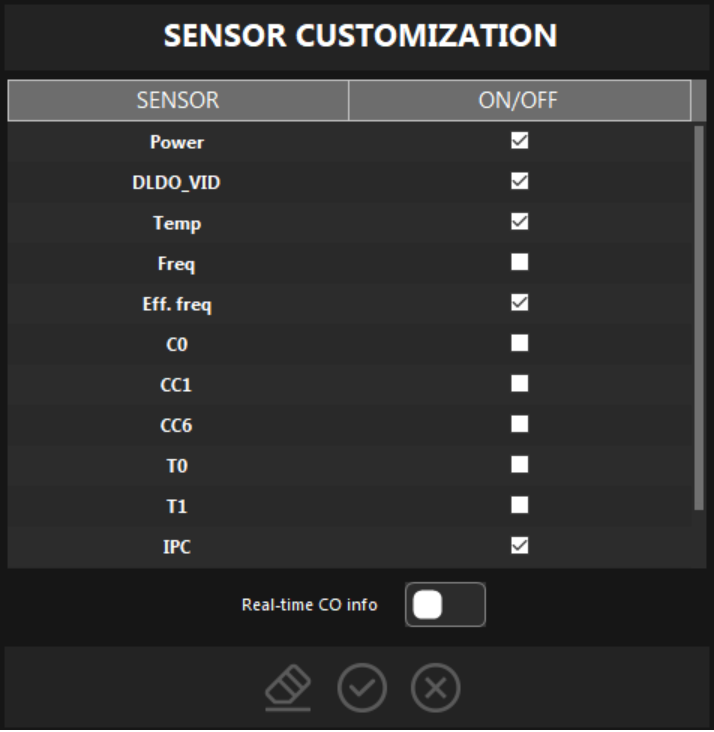
| Sensor | What it shows for each core |
|---|---|
| Power | Core power without the DLDO losses (W). |
| DLDO_VID | The target DLDO voltage (V). It is not the real core voltage. |
| Temp | Core temperature (°C). |
| Freq | The programmed core clock (GHz). |
| Eff. freq | The effective clock the core really runs at (GHz). |
| C0, CC1, CC6 | Time share in the active state and in the CC1 and CC6 sleep states (%). |
| T0, T1 | Use of the first and second thread of the core (%). |
| IPC | Instructions per clock. |
| BR MPKI | Mispredicted branches per thousand instructions. |
Real-time CO info adds the Curve Optimizer values that HYDRA or the active profile applies right now. The buttons at the bottom reset to the defaults (all sensors on, Real-time CO info off), apply, or cancel.
Sensor History
Double-click a value in a sensor table to open its history. Each window follows one sensor, so you can open several at once; a cell with two values shows both lines.
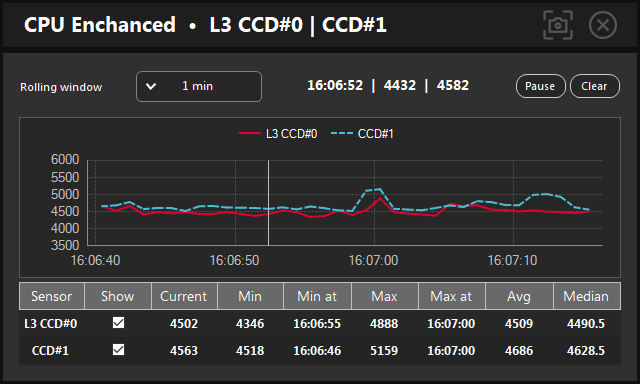
- Rolling window sets the time span of the chart and the statistics: 30 sec, 1, 5, 15 or 30 min.
- Hover the chart to read the time and the values at that point; they appear in the line next to Rolling window.
- Pause freezes the chart and statistics while samples keep collecting; Clear empties them and starts over.
- The table shows Current, Min, Max, Avg and Median in the window, and when the minimum and maximum happened. Show hides or shows a line.
- The camera icon saves a screenshot of the window and copies it to the clipboard. Closing the window clears its data.
HYDRA log
The log at the bottom left shows HYDRA's messages with the time: what was applied, test results, warnings and errors. The same messages go to a file for each day, LOGS\YYYY_MM_DD.txt next to HYDRA.
- Copy log puts the whole log on the clipboard, ready to paste into a message.
- Clear log empties only the window; the file keeps everything.
- When you ask for help, attach the log file of that day: it shows what happened before the problem.
CSV logging
CSV logging records sensors at every Monitoring interval into a table you can open in a spreadsheet.
- In the SETTINGS tab, choose the data groups in the Shared Memory & Logging panel.
- Click the LOG icon in the LOGGING tab or press Ctrl+Alt+F8. The log shows which groups are recorded and how often.
- Run the test or play the game.
- Click the LOG icon or press Ctrl+Alt+F8 again. HYDRA writes the file, reports the number of samples and metrics, and opens the folder with the file selected.
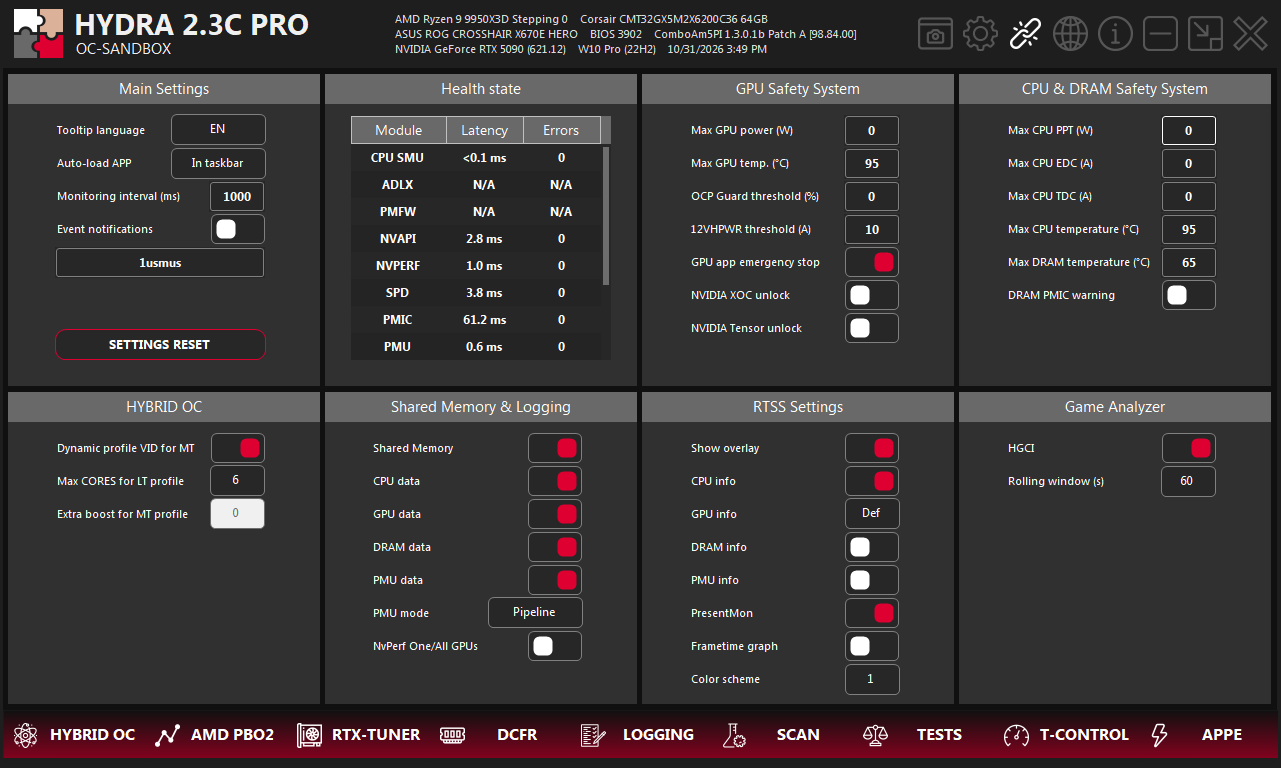
- 1Monitoring interval. How often a sample is recorded, from 100 to 2000 ms.
- 2Shared Memory. Publishes the same live data for other monitoring tools and scripts. It is not needed for CSV logging. See API/SDK.
- 3CPU, GPU, DRAM and PMU data. The groups in the CSV file: processor and per-core sensors, graphics card, memory with module sensors, processor counters.
- 4PMU mode. Which processor counters PMU data records: Overlay, Vector, Cache/TLB, Memory or Pipeline.
- 5NvPerf One/All GPUs. Off: only the graphics card HYDRA controls. On: every discrete graphics card.
- Files are named
HYDRA_Telemetry_YYYY_MM_DD_HH_mm_ss_ID.csvand saved in theLOGSfolder next to HYDRA. - Samples are kept in memory and written to disk only when you stop, so logging does not slow down the system with disk writes. If the buffer fills up, HYDRA saves the file by itself.
- If writing fails, the data stays in memory: click the LOG icon again to retry.
- Per-core and per-module sensors add many columns. Turn off the groups you do not need for a smaller file.
Good to know
- A shorter Monitoring interval gives more detail but bigger files and a bit more load; the default 1000 ms suits most sessions.
- For a game session, an HGCI report adds frame times and hitches to what the CSV file shows.
- The HGCI, Electric Dreams and Anvil logs are in their own subfolders of
LOGS.
Something wrong or missing on this page? Tell us in Discord.