
SAFETY SYSTEM
What it is. HYDRA's protection limits for the graphics card, the processor and the memory, set in the SETTINGS tab, together with the Health state table that shows whether each of HYDRA's sensor sources is working.
Why use it. Tuning and stress tests push hardware to its limits. The Safety System watches power, current and temperature and steps in when a limit is crossed: it stops the running operation and, on the GPU side, can also end the program that overloads the card. Health state shows at a glance when a reading is missing or failing, before you trust the numbers.
The screen at a glance
The gear icon in the top-right corner of HYDRA opens the SETTINGS tab. This page covers the marked panels; the other panels belong to other HYDRA features.
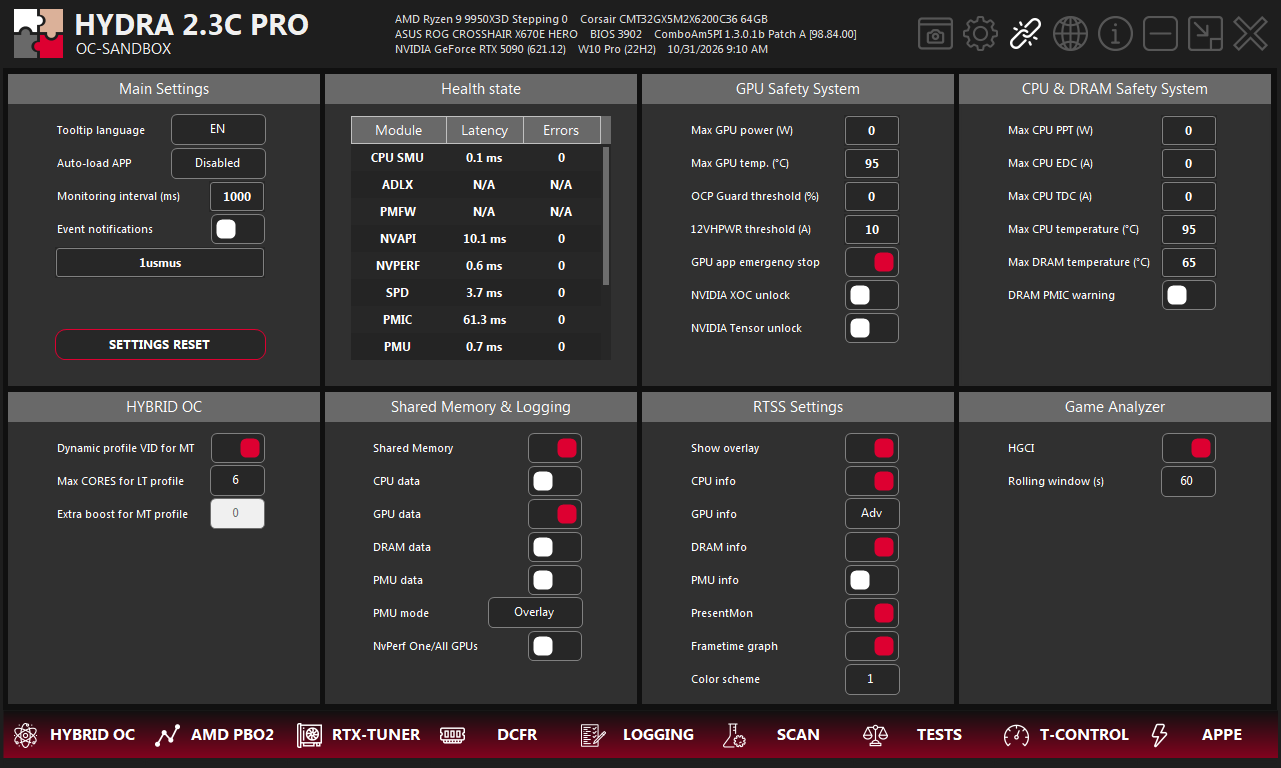
- 1Health state. Every sensor source HYDRA reads, with its latency and error count. See Health state.
- 2GPU Safety System. Power, temperature, OCP Guard and 12VHPWR limits of the graphics card. See GPU limits.
- 3GPU app emergency stop. Whether a GPU trigger ends the program that loads the card, or only shows a warning.
- 4NVIDIA XOC and Tensor unlock. The switches for NVIDIA XOC UNLOCK and NVIDIA TENSOR UNLOCK.
- 5CPU & DRAM Safety System. Power, current and temperature limits of the processor and the memory temperature limit. See CPU and memory limits.
- 6DRAM PMIC warning. Pop-up warnings about protection events reported by DDR5 modules.
- 7Event notifications. Windows notifications for protection triggers, missing sensors and other abnormal states.
GPU limits
| Setting | What it does |
|---|---|
| Max GPU power (W) | The power limit of the monitored card. Two valid readings in a row at or above it confirm a trigger, even when no HYDRA operation is running. 0 turns this check off. |
| Max GPU temp. (°C) | One limit checked separately against the core and the hotspot temperature: two core readings or four hotspot readings in a row confirm a trigger. Choose it with both sensors and your cooler in mind. |
| OCP Guard threshold (%) | Experimental, NVIDIA only. A trip point as a percentage of the current reference the driver reports for the most loaded power rail. This reference is not a verified hardware OCP limit. Two readings in a row confirm a trigger; 0 (the default) turns it off. |
| 12VHPWR threshold (A) | For supported ASUS cards that report all six pins of the 12VHPWR / 12V-2x6 connector. A pin above this current for 2 seconds starts the emergency response; a separate 12 A limit acts after 0.9 seconds. Above 0 and up to 12 A, 9.2 A by default. Without per-pin data the field is read-only. |
| GPU app emergency stop | The reaction to Max GPU temp., Max GPU power and OCP Guard. On (the default): HYDRA ends the non-system program that loads the monitored card the most and cancels a running HYDRA operation. Off: HYDRA only shows a warning, at most once every 10 seconds. The 12VHPWR emergency works either way. |
CPU and memory limits
When the processor reaches a limit, HYDRA interrupts the current operation and turns off overclocking control, which returns the CPU to a safer mode. 0 turns off the PPT, EDC or TDC limit.
| Setting | What it does |
|---|---|
| Max CPU PPT (W) | The power limit of the processor package. |
| Max CPU EDC (A) | The short peak current limit. It reacts to brief boost current spikes. |
| Max CPU TDC (A) | The sustained current limit, for longer electrical and thermal load than EDC. |
| Max CPU temperature (°C) | The processor temperature limit. Leave a margin below the CPU's own thermal ceiling that matches your cooling. |
| Max DRAM temperature (°C) | The memory module temperature limit. Two valid readings in a row from the hottest module interrupt the active operation. Leave extra margin during voltage tuning and long memory tests. |
| DRAM PMIC warning | DDR5: pop-up warnings when the power chip (PMIC) of a module reports a protection or fault event, such as too much heat, current or voltage. Keep it on while you change DDR5 voltages or stress-test memory. |
AMD PBO2 respects these processor limits too: raising PBO2 limits does not switch the protection off.
Health state
The table lists every source HYDRA reads its sensors from.
- Latency is how long the last update of that source took.
- Errors counts failed updates since HYDRA started.
N/Ameans the source is not used on this PC, for example ADLX on a system with an NVIDIA card.--means it is supported but has no fresh data yet or is paused.
| Module | What it reads |
|---|---|
| CPU SMU | The management unit of the Ryzen processor: power, current, clocks and temperatures. |
| ADLX | AMD's driver interface for Radeon cards. |
| PMFW | The power-management firmware of supported Radeon cards, read directly. |
| NVAPI | NVIDIA's driver interface for GeForce cards. |
| NVPERF | NVIDIA's hardware performance counters (NvPerf). |
| SPD | The SPD chips of the memory modules, with their temperature sensors (DDR4, DDR5). |
| PMIC | The power chips of DDR5 modules: voltages, currents and temperatures. |
| PMU | The performance counters of the processor. |
| PresentMon | Frame timing of the running game: FPS and frame time. |
| RTSS | The RivaTuner Statistics Server overlay, while it is shown. |
| SuperProcess | HYDRA's list of running processes, which finds the games and apps that profiles react to. |
| PDH | Windows performance counters for the graphics card. |
Good to know
- Turn on Event notifications in Main Settings to get Windows notifications for protection triggers, missing or unhealthy sensors and driver conflicts, not only lines in the log.
- The limits protect only what HYDRA can measure. They do not replace sensible voltages and good cooling.
Something wrong or missing on this page? Tell us in Discord.