
REMOTE CONTROL
What it is. HYDRA LINK, a website linked to your PC that opens in the browser of a phone, a tablet or another computer. You sign in with Patreon, pair the PC once with a code from HYDRA, and then follow the progress and the HYDRA log, start and stop ANVIL, VANTA and GPU diagnostics, record telemetry, and restart, sleep or shut down the PC.
Why use it. Tests and diagnostics can run for hours. You do not have to sit next to the PC: check how a run is going from the sofa, from work or from another computer, stop it, start the next one, or bring back a PC that hung, and resume a diagnostic that a crash interrupted.
Pairing the PC
- In HYDRA, click the chain icon in the top-right corner. The HYDRA / LINK window opens.
- Click CREATE PAIRING CODE. The code works for 5 minutes.
- On a phone, tablet or another computer, open hydralink.1usmus.dev, sign in with Patreon and enter the code, with or without the hyphen.
- HYDRA asks on the PC whether this Patreon account may control the PC. The preselected answer is No: choose Yes only if you entered the code yourself.
The PC stays linked to your Patreon account after a restart of HYDRA or the PC; you pair only once. After that, open LINK on any phone, tablet or computer and sign in with the same Patreon account: no new code is needed. While HYDRA is connected to LINK, the chain icon is lit.
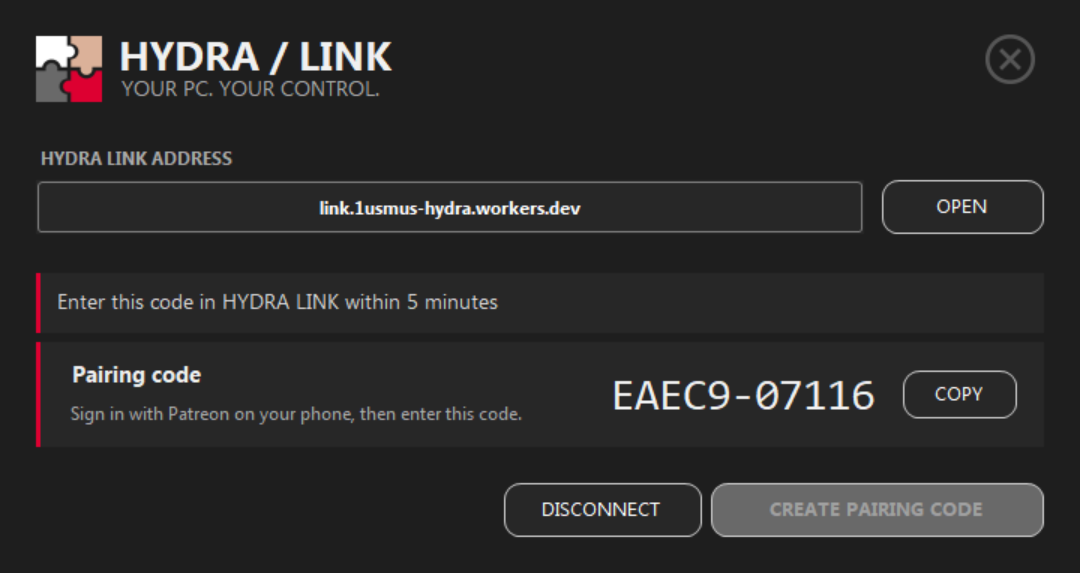
- 1HYDRA LINK ADDRESS. The site to open on the other device. OPEN opens it in the browser of this PC.
- 2Status. What is happening: waiting for the code, waiting for your answer, connected, or reconnecting.
- 3Pairing code. A one-time code; COPY puts it on the clipboard.
- 4DISCONNECT and CREATE PAIRING CODE. DISCONNECT unlinks the PC; remote access stops until you pair again. CREATE PAIRING CODE makes a new code.
The main screen
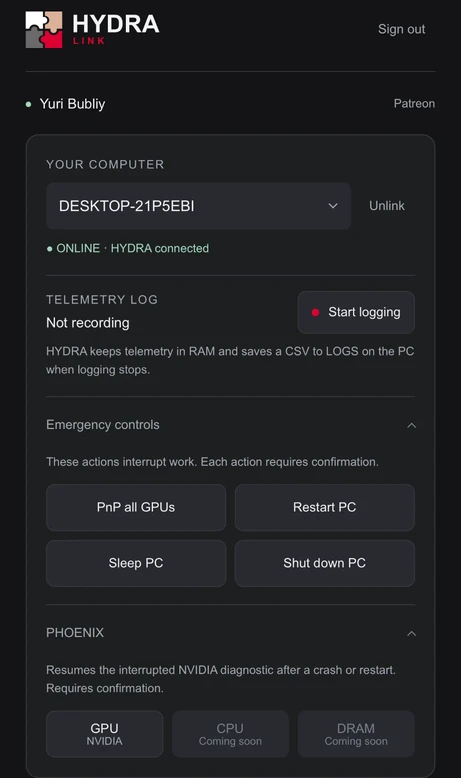
- 1Account. The Patreon account you signed in with. Sign out ends the session in this browser; the PC stays linked.
- 2YOUR COMPUTER. The linked PC, a list when you have several. Unlink removes the PC from the account. The line below shows whether the PC and HYDRA are online.
- 3TELEMETRY LOG. Starts and stops CSV logging, like the LOG icon in HYDRA. The file is saved to LOGS on the PC when logging stops.
- 4Emergency controls. Restart, sleep or shut down the PC, or restart all graphics cards (PnP all GPUs). Each action asks for confirmation.
- 5PHOENIX. Resumes a GPU diagnostic interrupted by a crash or restart. NVIDIA for now; CPU and DRAM are coming.
- Before Restart, Sleep or Shut down, HYDRA stops a running test. These three actions work even when the HYDRA window does not respond.
- PnP all GPUs restarts all graphics cards in Windows and reconnects HYDRA to them. Use it only when a card misbehaves, for example when its fans stay at 100 % after a driver reset. On NVIDIA it also turns RTX-TUNER and XOC off; switch them on again on the PC.
- PHOENIX needs a saved checkpoint of a GPU diagnostic and the APP PACK already set up on the PC.
Tests through LINK
The bar at the bottom of the site switches between ANVIL, VANTA and GPU (the automatic tuner of SCAN NVIDIA and SCAN RADEON); CPU and DRAM tuning are coming. Opening a module loads its current settings and limits from HYDRA: the same fields, presets and ranges as on the PC.
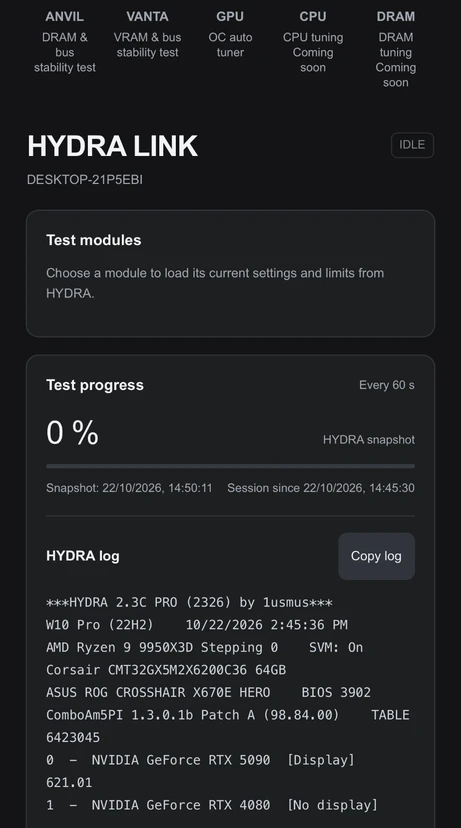
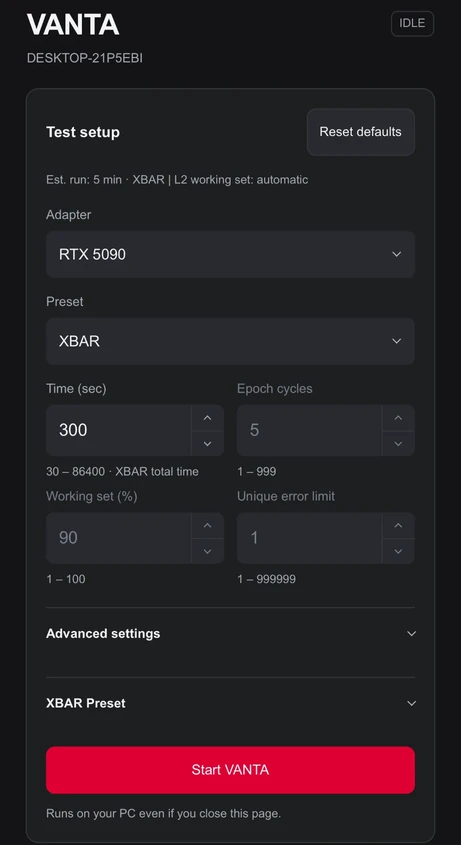
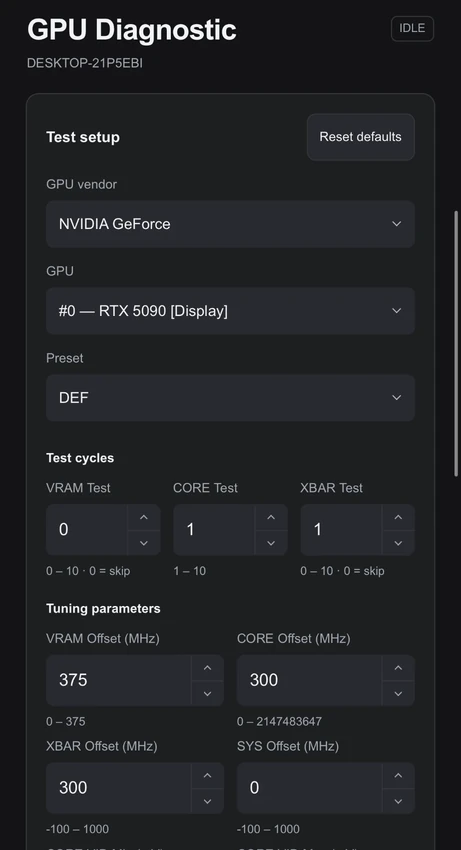
- Changing fields in LINK does not touch the hardware. HYDRA checks the settings again and starts the test only when you press Start.
- The test runs on the PC even if you close the page. One test at a time: there is no queue.
- Test progress and the HYDRA log refresh every 60 seconds; STOP stops the run. Copy log copies the log of the current HYDRA session.
- The GPU diagnostic needs the APP PACK already set up on the PC: LINK cannot download it.
- For NVIDIA cards, LINK uses the XOC mode set on the PC; switch NVIDIA XOC UNLOCK on the PC.
Good to know
- HYDRA connects to LINK by itself over an encrypted connection; nothing needs to be opened on the router.
- Every command has a deadline. If the PC does not answer in time, the site shows that the outcome is unknown and does not repeat the command; check the log.
- The site adapts to the screen, from a phone to a desktop monitor.
- The site is in English.
Something wrong or missing on this page? Tell us in Discord.