
RTSS
What it is. HYDRA's in-game overlay: a compact panel on top of the game with HYDRA's state and live readings of the processor, the graphics card, the memory and the frame rate. HYDRA draws it through RivaTuner Statistics Server (RTSS).
Why use it. You see what the hardware does while you play, without leaving the game: whether your profiles are on, clocks, temperatures and power, what holds the GPU clock back, and how smooth the frames are. It is the quickest way to check a new tuning in a real game and to catch the moment a stutter or a limit appears.
Before you start
- Install RivaTuner Statistics Server from Guru3D. HYDRA recommends version 7.3.7 or newer and writes a note to the log when it finds an older one.
- You do not need to start RTSS yourself. HYDRA starts it when you turn on Show overlay and closes it when you turn the overlay off or exit HYDRA. An RTSS that another program started keeps running.
- If RTSS cannot start, Show overlay turns itself off and the reason is in the HYDRA log.
- The position of the overlay on the screen and its zoom come from your RTSS settings.
The settings
The overlay is set up in the RTSS Settings panel of the SETTINGS tab, opened with the gear icon in the top-right corner of HYDRA. A few settings in the neighbouring panels also change what it shows.
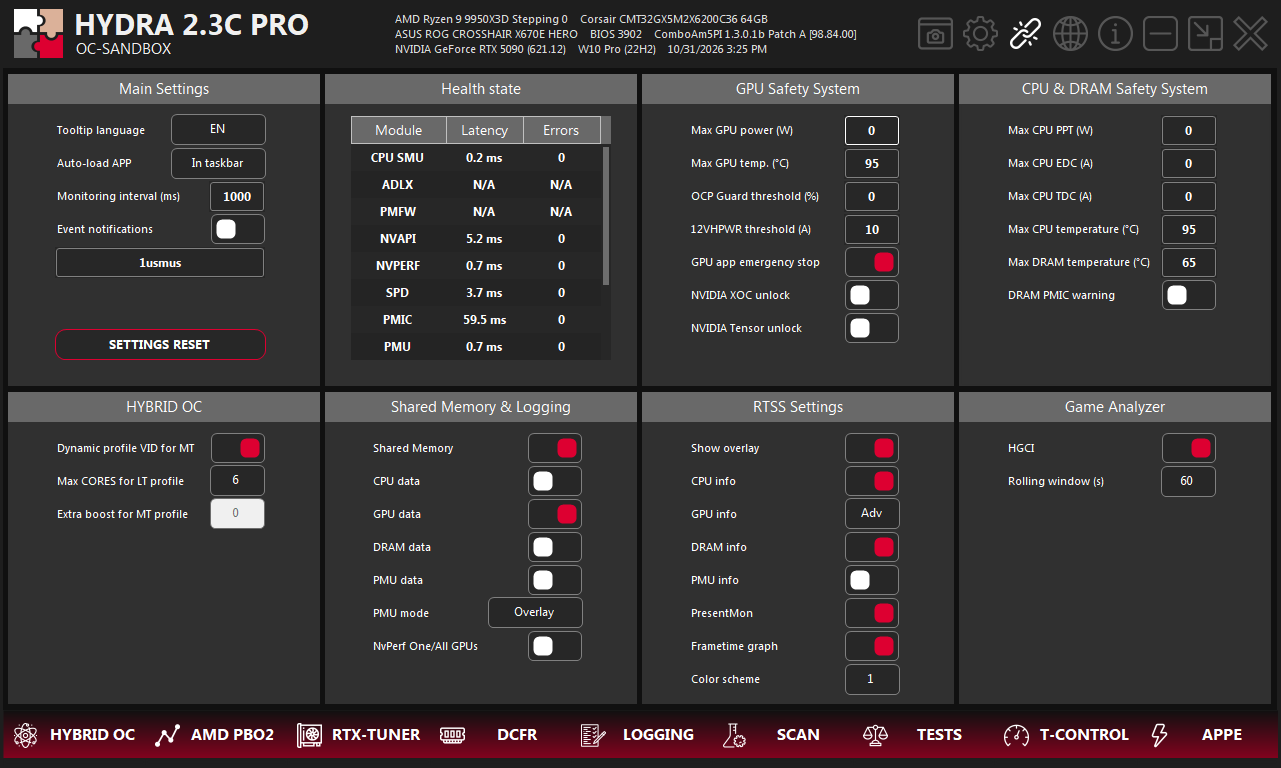
- 1Show overlay. Shows or hides the whole overlay; Ctrl+Alt+F6 does the same from any game. Monitoring, GPU counters and HGCI keep working while it is hidden.
- 2CPU, GPU, DRAM and PMU info. Which blocks the overlay shows. GPU info has three levels, see the table below. PMU info appears only when PMU mode (7) is Overlay.
- 3PresentMon and Frametime graph. The frame-rate block and the frame-time graph under it. The graph and Game Analyzer need PresentMon on.
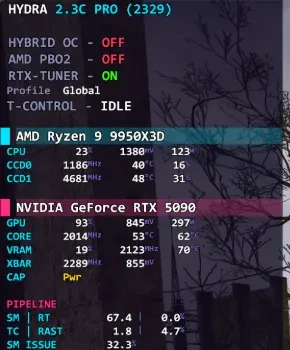
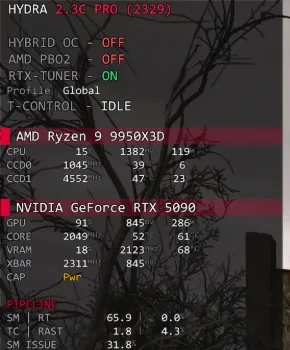
- 4Color scheme. The overlay style: 1 Minimal, 2 Neon, 3 HYDRA Red. See Color schemes.
- 5Game Analyzer. HGCI adds the Game Analyzer block. Rolling window sets how many recent seconds it and the Avg and 1% Low values use, from 1 to 600.
- 6Monitoring interval. How often HYDRA reads its sensors. The overlay refreshes together with them, but not more often than every 500 ms.
- 7PMU mode. The group of processor counters HYDRA collects. The PMU block of the overlay needs the Overlay group.
| Level | What the GPU block shows |
|---|---|
| Off | No GPU block. |
| Def | Load, clocks, temperatures, power and voltage; on NVIDIA also the XBAR clock with its voltage and what limits the clock (CAP). |
| Adv | NVIDIA only. Everything from Def plus detailed load counters of the shader pipeline, the memory and the XBAR. |
Reading the overlay
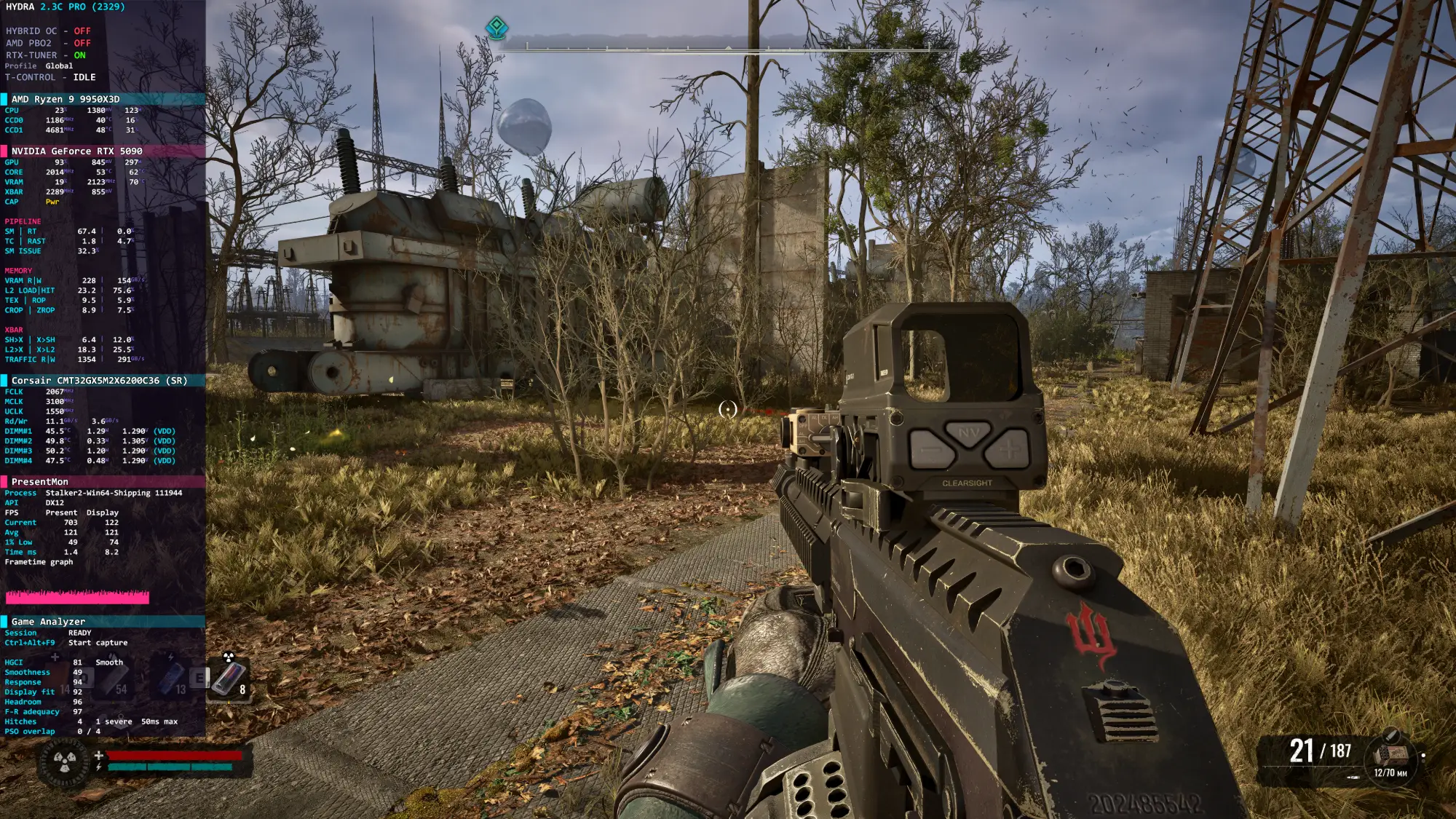
The overlay is a column of blocks in a fixed order. A block you turn off disappears and the blocks below it move up.
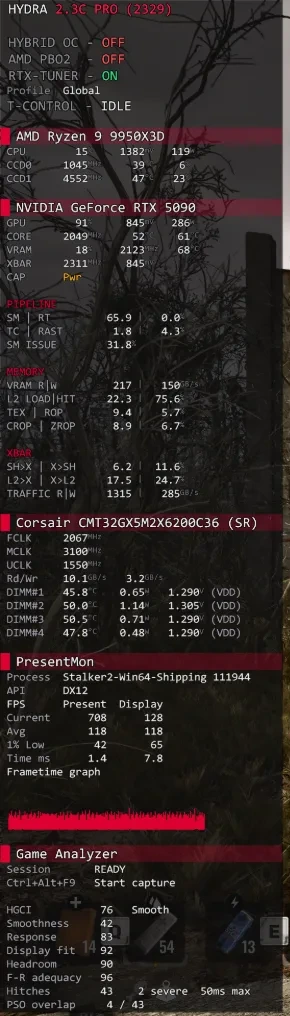
- 1Title and status. HYDRA version, whether HYBRID OC, AMD PBO2 and RTX-TUNER are on, their profiles, and the T-CONTROL state. See Status lines.
- 2CPU. Processor load, voltage and power, and each CCD. See CPU block.
- 3GPU. Load, clocks, temperatures and power of the graphics card. See GPU block.
- 4PIPELINE, MEMORY, XBAR. NVIDIA counters of the Adv level. See GPU counters (Adv).
- 5DRAM. Memory clocks, bandwidth and each module. See DRAM block.
- 6PresentMon. The game, its graphics API, FPS and frame time. See PresentMon block.
- 7Frametime graph. Recent frame times on a 0–50 ms scale. Each spike is a frame that took longer: a stutter.
- 8Game Analyzer. The HGCI smoothness score and its parts. See Game Analyzer block.
Status lines
| Line | Meaning |
|---|---|
| HYBRID OC, AMD PBO2 | ON in green, OFF in red. With HYBRID OC on, a Profile line under it shows the active profile. |
| RTX-TUNER | The GPU tuner, RX-TUNER on Radeon cards. When it is on, the Profile line under it shows the active profile, for example Global. |
| T-CONTROL | IDLE, ACTIVE, LIMITED, WARNING or ERROR. While T-CONTROL manages a game, the Game and Layout lines show the game and how its threads are placed. |
| 12VHPWR alert | A short red line under the title when the 12VHPWR protection triggers. The details are in the HYDRA log, see SAFETY SYSTEM. |
CPU block
The block title is the processor name.
| Line | Values |
|---|---|
| CPU | Processor load (%), core voltage VID (mV), package power (W). |
| CCD0, CCD1 | For each CCD: the effective clock of its fastest core (MHz), the temperature of its hottest core (°C) and its load (%). A processor with one CCD shows one line. |
GPU block
The block title is the graphics card name.
| Line | Values |
|---|---|
| GPU | Load (%), core voltage (mV), board power (W). |
| CORE | Core clock (MHz), core temperature and hotspot temperature (°C). |
| VRAM | Memory controller load (%), video memory clock (MHz) and memory temperature (°C) when the card reports it. |
| XBAR | NVIDIA: XBAR clock (MHz) and MSVDD voltage (mV). |
| CAP | NVIDIA: what limits the clock right now, for example Pwr (power), Thrm (temperature), RelV (reliability voltage), OpV (maximum operating voltage) or Idle (low load). None means nothing limits it. CURVE EDITOR explains these limits in detail. |
GPU counters (Adv)
NVIDIA only, with GPU info set to Adv. The lines come in three groups, PIPELINE, MEMORY and XBAR. Values are a share of the unit's peak (%) or bandwidth (GB/s); -- means the card does not report that counter. Together they show which part of the GPU a scene loads most.
| Line | What it measures |
|---|---|
| SM | RT | How busy the shader multiprocessors (SM) and the ray-tracing cores (RT) are. |
| TC | RAST | Tensor cores and the rasterizer. |
| SM ISSUE | How fully the SMs issue instructions. |
| VRAM R|W | Video memory read and write bandwidth (GB/s). |
| L2 LOAD|HIT | L2 cache load and hit rate. |
| TEX | ROP | Texture units and render output units. |
| CROP | ZROP | Color and depth (Z) output units. |
| SH>X | X>SH | The XBAR paths from the shaders to the XBAR and back. |
| L2>X | X>L2 | The XBAR paths between the L2 cache and the XBAR. |
| TRAFFIC R|W | Read and write traffic between the shaders and the XBAR (GB/s). |
DRAM block
The block title is the maker and part number of the first module, with its ranks: SR single, DR dual, QR quad.
| Line | Values |
|---|---|
| FCLK, MCLK, UCLK | Infinity Fabric, memory and memory controller clocks (MHz). |
| Rd/Wr | Memory read and write bandwidth (GB/s). |
| DIMM#1–4 | For each module: temperature (°C), power of its PMIC (W) and VDD voltage (V). Power and voltage need DDR5 with a readable PMIC. |
- means there is no reading. ~ after a value means it is the last good reading, kept while a new one is not available.
PresentMon block
| Line | Meaning |
|---|---|
| Process | The game PresentMon watches and its process ID. |
| API | The graphics API of the game, for example DX12. |
| Present, Display | Two columns. Present counts the frames the game hands over for display; the heading changes to App when every one of them is rendered by the game itself, with no generated frames. Display counts the frames that reach the screen. |
| Current | FPS right now. |
| Avg, 1% Low | Average FPS and the 1 % low over the Rolling window. |
| Time ms | The current frame time in milliseconds. |
-- instead of a number means there are no fresh frames, for example while the game is paused or minimized.
Game Analyzer block
With HGCI on, the overlay adds the HYDRA Game Comfort Index: an overall score with a word for it, such as Smooth, and its parts: Smoothness, Response, Display fit, Headroom, F-R adequacy, Hitches and PSO overlap. Session shows READY, or REC with the time while a capture runs; Ctrl+Alt+F9 starts and stops the capture. What each part means is on the HGCI page.
PMU block
Ryzen processor counters for each CCD, under the Game Analyzer block.
| Line | Meaning |
|---|---|
| IPC | Instructions per clock. |
| Br Miss | The share of mispredicted branches (%). |
| L3 Miss | The share of L3 cache misses (%). |
| L3 Lat | L3 cache latency (ns). |
Color schemes
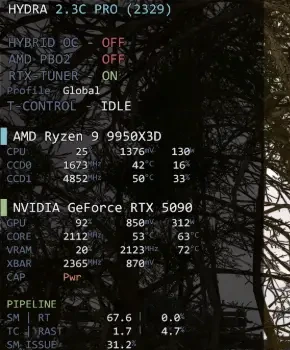
Color scheme changes the font, the background panel and the colors of text and graphs. The layout and the data stay the same.
Good to know
- Ctrl+Alt+F1, F2 and F3 turn HYBRID OC, AMD PBO2 and RTX-TUNER on and off from a game; the status lines show the result.
- RTSS limits how much text one overlay can hold. If everything does not fit, HYDRA drops whole blocks from the end, PMU first. Turn off the blocks you do not need.
- Before a GPU diagnostic, HYDRA turns the overlay off and switches GPU info from Adv to Def. Turn them back on afterwards.
- The RTSS row of Health state shows whether HYDRA's updates of the overlay succeed.
Something wrong or missing on this page? Tell us in Discord.