
RTX-TUNER
What it is. The NVIDIA tuning tab. Its profiles hold core, XBAR and memory offsets, power and temperature limits, fan speed and fan curves, and the V/F curve. One Global profile works for everything; your own profiles cover single games or apps.
Why use it. Each game can get the settings that suit it, for example a quiet undervolt for a light game and full power for a heavy one. While RTX-TUNER is on, HYDRA switches profiles by itself when an app starts and applies a change within a second, so you set it up once.
The screen at a glance
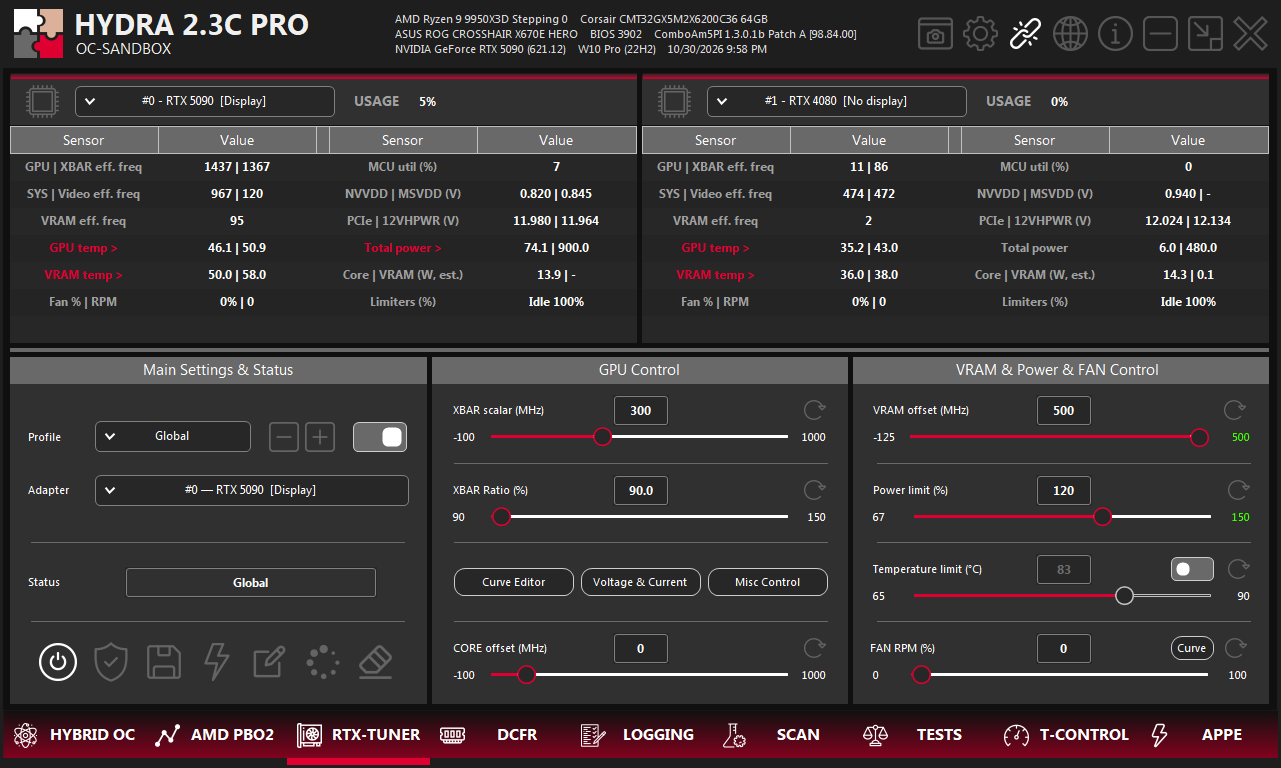
- 1RTX-TUNER. The tab on the bottom bar of HYDRA.
- 2Sensors. Live clocks, voltages, temperatures, power and limiters of up to two cards; pick the card in each list.
- 3Profile. The profile you edit, the buttons to add or delete one, and the switch that enables it.
- 4Adapter. The card whose values you edit.
- 5Status. The profile in use now, or Disabled.
- 6Buttons. On/off, V/F Drift Guard, save, driver restart, back up, load backup, reset.
- 7GPU Control. XBAR and core offsets, XBAR Ratio.
- 8Editors. Curve Editor, Voltage & Current, Misc Control.
- 9VRAM & Power & FAN Control. Memory offset, power and temperature limits, fan speed.
- 10Temperature priority. Prefer the temperature target when the driver links it to the power limit.
- 11Curve. Opens the fan curves. See FAN Curve.
Profiles
- Global is the base profile. It works for every app and cannot be switched off.
- + creates a profile for one app, − deletes the selected one. The switch next to them enables a custom profile: while its app runs, it replaces Global.
- Adapter chooses the card. Every value on the tab belongs to the selected profile and card; profiles stay bound to the physical card.
- Edits are kept in memory at once and survive switching between profiles. Save writes them to disk, so they are still there after HYDRA restarts.
Turn RTX-TUNER on
The power button turns RTX-TUNER on: HYDRA applies Global and switches to an enabled app profile whenever its app runs. Status shows the profile in use. While RTX-TUNER is on, a change to the active profile reaches the card on the next one-second cycle, and only the changed group is sent.
| Button | What it does |
|---|---|
| On/off | On applies the profiles. Off returns the card to stock; anything that cannot be reset is noted in the log. XOC and its unlocks stay active. |
| V/F Drift Guard | For the selected card and all its profiles: when the factory curve drifts above its saved reference, HYDRA lowers the applied offsets to match. Your offsets stay as you set them, and the guard never raises the curve. |
| Save | Saves all NVIDIA profiles to disk. |
| Restart driver | Restarts the NVIDIA driver, reconnects HYDRA, turns RTX-TUNER off, sets XOC to Disabled and returns the driver to stock. The screen flickers briefly. |
| Back up | Creates a backup of all RTX profiles. |
| Load backup | Imports a profile file. HYDRA checks that it matches your cards and turns RTX-TUNER off before replacing the current profiles. |
| Reset | After confirmation, deletes the profile files and their backup, creates a clean Global, turns RTX-TUNER off and restarts the driver to stock. |
GPU Control
| Setting | What it does |
|---|---|
| CORE offset (MHz) | Shifts the whole graphics clock (GPCCLK) curve. A custom curve from CURVE EDITOR takes precedence; reset it there to use this offset. |
| XBAR scalar (MHz) | Shifts the crossbar clock (XBARCLK), from −100 to 1000 MHz. A custom XBAR curve takes precedence. |
| XBAR Ratio (%) | RTX 50 only. The driver's GPC-to-XBAR coefficient, from the factory 89.99 % to 150 %. It is not the measured clock ratio. A higher value can use more of the power budget and lower the core clock in a power-limited load, so compare clocks and performance under the same load. |
| Curve Editor | Opens CURVE EDITOR for the V/F curves. |
| Voltage & Current | Opens the voltage and current limits. Needs XOC. See Voltage & Current. |
| Misc Control | RTX 50 only. Opens the system clock offset. See Misc Control. |
VRAM, power and fan
| Setting | What it does |
|---|---|
| VRAM offset (MHz) | Memory clock offset. Too high causes artifacts, driver resets or a silent loss of performance from error correction. |
| Power limit (%) | Board power limit. With XOC it goes up to 150 % on supported cards. |
| Temperature limit (°C) | From 65 to 90 °C; GPU Boost lowers the clock near it. The switch gives the temperature target priority when the driver links it to the power limit. |
| FAN RPM (%) | 0–26 Auto, 27–29 adaptive quiet control, 30–100 manual. The quiet levels are not PWM percentages. While RTX-TUNER is on, HYDRA watches every fan and raises its target if it stops. |
FAN Curve
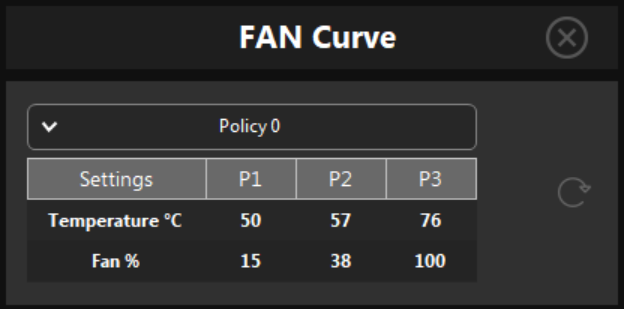
- 1Policy. The firmware fan policy to edit. Policy numbers are not fan numbers.
- 2Points. Temperature in whole °C and fan speed in %.
- 3Reset. Returns all fan curves of the profile to factory and Auto.
- 4Close. Accepts valid edits.
- 100 % is the RPM of the policy's top factory point. HYDRA turns the percentages into target RPM; they are not PWM.
- Neighbouring points follow the one you edit: speed never goes down along the curve, and temperatures stay at least 1 °C apart.
- Changing FAN RPM on the tab switches back to a fixed speed or Auto.
- Closing the window keeps the edits in the profile. Save the profiles to keep them after a restart.
Misc Control
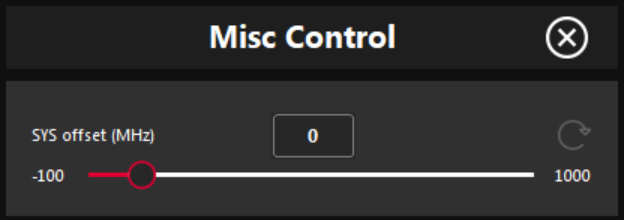
- 1SYS offset (MHz). System clock (SYSCLK) offset of the selected profile, from −100 to 1000 MHz.
- 2Reset. Sets the offset to 0 MHz.
- 3Close. Closes the window.
A custom SYS curve from CURVE EDITOR takes precedence over this offset; resetting the offset does not clear the curve.
Voltage & Current
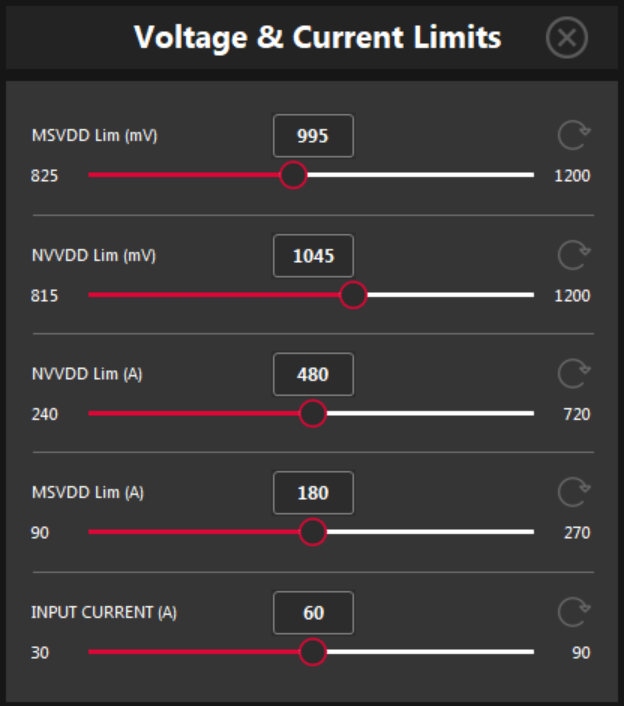
- 1Value. The limit for the selected profile, in mV or A.
- 2Range. What this card allows at the current XOC tier.
- 3Reset. Returns this limit to stock.
- 4Close. Closes the window.
NVVDD and MSVDD voltage limits, their current limits and the input current. The window needs XOC; NVIDIA XOC UNLOCK explains each limit.
Something wrong or missing on this page? Tell us in Discord.