
DCFR
What it is. DRAM Calculator for Ryzen inside HYDRA. It shows every memory setting the system uses, calculates a Safe or Fast timing preset for DDR5 modules from their SPD data and stable community configurations, and sends it to the motherboard.
Why use it. Memory timings affect performance in games and other memory-heavy work, and tuning dozens of them by hand takes many hours of trial and error. DCFR gives you a reasoned starting point in a few clicks; it takes effect after a restart.
The screen at a glance
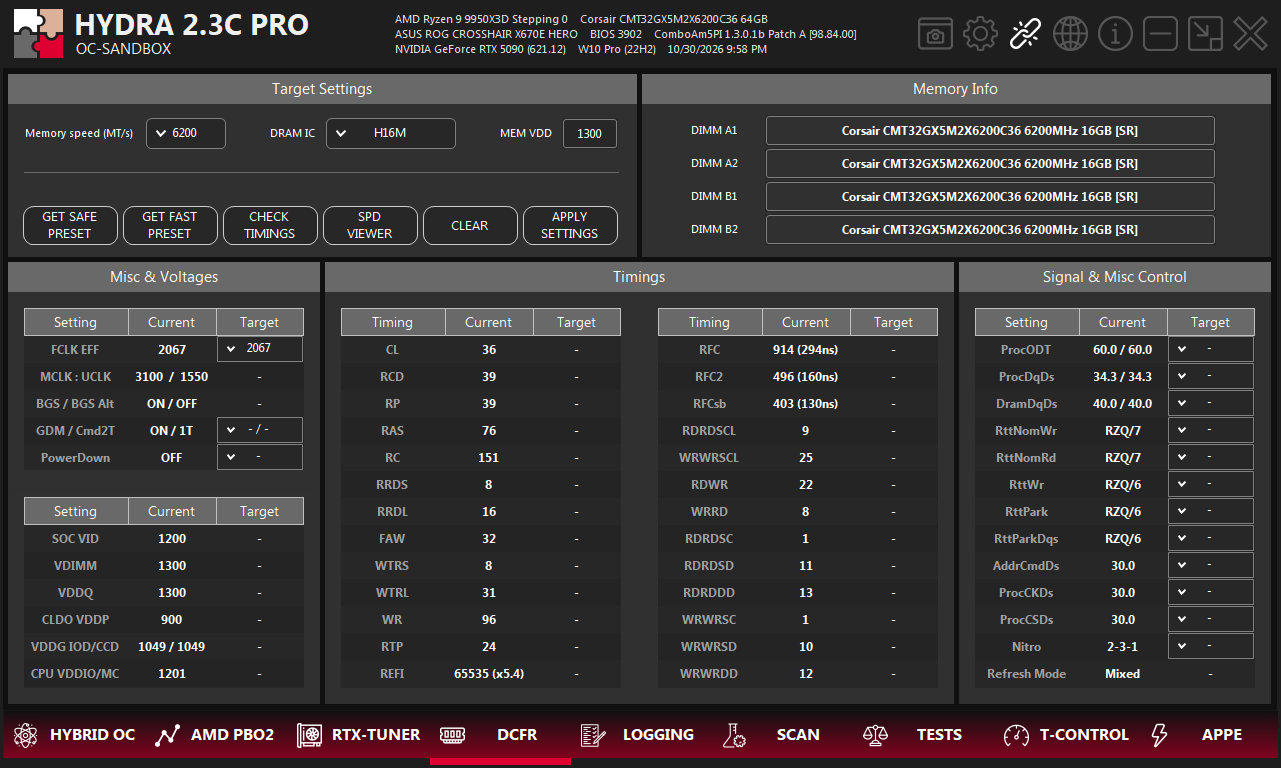
- 1DCFR. The tab on the bottom bar of HYDRA.
- 2Target Settings. Data rate, DRAM IC and VDD the preset is calculated for.
- 3Buttons. Presets, timing check, SPD viewer, clear, apply.
- 4Memory Info. The module in each slot.
- 5Misc & Voltages. FCLK, MCLK : UCLK, GDM, Cmd2T, PowerDown and the memory voltages in use.
- 6Timings. Primary, secondary and turnaround timings: Current and Target.
- 7Signal & Misc Control. ProcODT, drive strengths, RTT, Nitro and refresh mode.
Current is what the system uses now. Target is what DCFR will apply. A dash means the value stays as it is.
Calculate a preset
- Choose Memory speed, the data rate you want.
- Check DRAM IC. If all modules report the same known die in SPD, HYDRA selects it for you; on the first start with DDR5 it selects H16M. A wrong IC gives an unsuitable preset.
- Enter MEM VDD, the DRAM voltage you will run, from 1100 to 1650 mV. HYDRA starts with the current VDD.
- Click GET SAFE PRESET or GET FAST PRESET. The Target columns fill in.
| Button | What it does |
|---|---|
| GET SAFE PRESET | A conservative DDR5 preset from the EXPO/XMP and JEDEC data in the modules' SPD. |
| GET FAST PRESET | A performance preset from the same data. Not available for Samsung D, Micron A/G and Micron 24 Gbit B: there is not enough community data for them. |
| CHECK TIMINGS | Colours the current DDR5 timings: green is between Fast and Safe, yellow is looser than Safe, red is tighter than Fast or breaks a timing rule. Recommended values go to the log. Click again to remove the colours. Not available for DDR4. |
| SPD VIEWER | Opens the SPD data of the installed modules. See SPD VIEWER. |
| CLEAR | Clears the Target values. |
| APPLY SETTINGS | Sends the Target values to the motherboard. See Apply. |
Apply
- Disable XMP or EXPO in BIOS first.
- Set VDD and VDDQ yourself: the preset only assumes the MEM VDD you entered.
- Click APPLY SETTINGS and choose what to send: Misc settings (MCLK, UCLK, FCLK, PowerDown, GDM, Cmd2T), Voltage settings, Timing settings, Signal settings.
- Click APPLY & REBOOT to restart in 10 seconds, or APPLY to restart later. CANCEL sends nothing.
SPD VIEWER
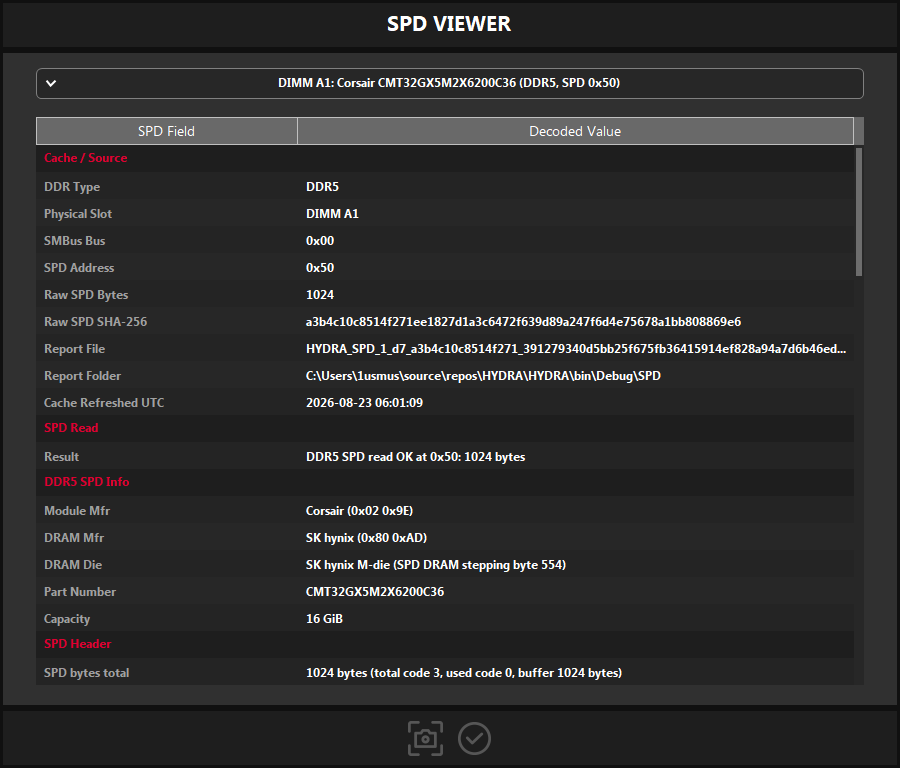
- 1Module. Choose the slot: DIMM A1, A2, B1, B2.
- 2Sections. Source and cache, read result, module and DRAM maker, die, part number, capacity, header and timing data.
- 3Report file. HYDRA saves the decoded SPD of each module as a file.
- 4Buttons. Save a screenshot of the window, close it.
SPD is the data chip on each memory module: its maker, the DRAM die, capacity and the timings it supports. DCFR builds its presets from this data. HYDRA keeps the read data and reports in the SPD folder next to HYDRA.
Something wrong or missing on this page? Tell us in Discord.